YMatrix
Quick Start
Connecting
Benchmarks
Deployment
Data Usage
Manage Clusters
Upgrade
Global Maintenance
Expansion
Monitoring
Security
Best Practice
Technical Principles
Data Type
Storage Engine
Execution Engine
Streaming Engine(Domino)
MARS3 Index
Extension
Advanced Features
Advanced Query
Resource Groups
Federal Query
Grafana
Backup and Restore
Disaster Recovery
Guide
Performance Tuning
Troubleshooting
Tools
Configuration Parameters
SQL Reference
Transport-layer encryption secures communication between clients and the database server, enhancing data transmission security. Administrators can specify the encryption method for connections between clients and servers through the pg_hba.conf configuration file.
SSL connections encrypt all data transmitted over the network, including passwords, query statements, and returned results. Clients can enforce SSL connections to the server.
Note!
SSL connection encryption requires OpenSSL to be installed on both the client and server, and SSL support must be enabled at compile time.
pg_hba.conf:hostssl all mxadmin 10.51.0.40/32 scram-sha-256Install OpenSSL:
sudo yum install openssl openssl-develNavigate to the cluster directory and use OpenSSL to issue a certificate:
cd $MASTER_DATA_DIRECTORYGenerate a server certificate request:
openssl req -new -text -out server.reqNote!
The PEM pass phrase must not be empty (e.g., enter123456). Other fields may be left blank.
Generate a password-protected key and decrypt it:
openssl rsa -in privkey.pem -out server.keyNote!
Enter the PEM pass phrase provided in the previous step.
Convert the certificate into a self-signed certificate:
openssl req -x509 -in server.req -text -key server.key -out server.crtRestrict access permissions on the private key:
chmod og-rwx server.keyConfigure the YMatrix server. Set ssl in postgresql.conf to on to enable SSL support when starting the YMatrix server:
gpconfig -c ssl -v off -m on
gpstop -u
gpconfig -s ssl
Capture network traffic using tcpdump:
tcpdump -i enp33s0f0 -nn port 5432 -w /tmp/http.tcpdumpVerify SSL connection from the client side (using another machine as the client):
psql -h dev-150 -p 5432 -d postgres -U mxadminCreate a table and insert data:
create table abcd(a text);
insert into abcd values('123456789');
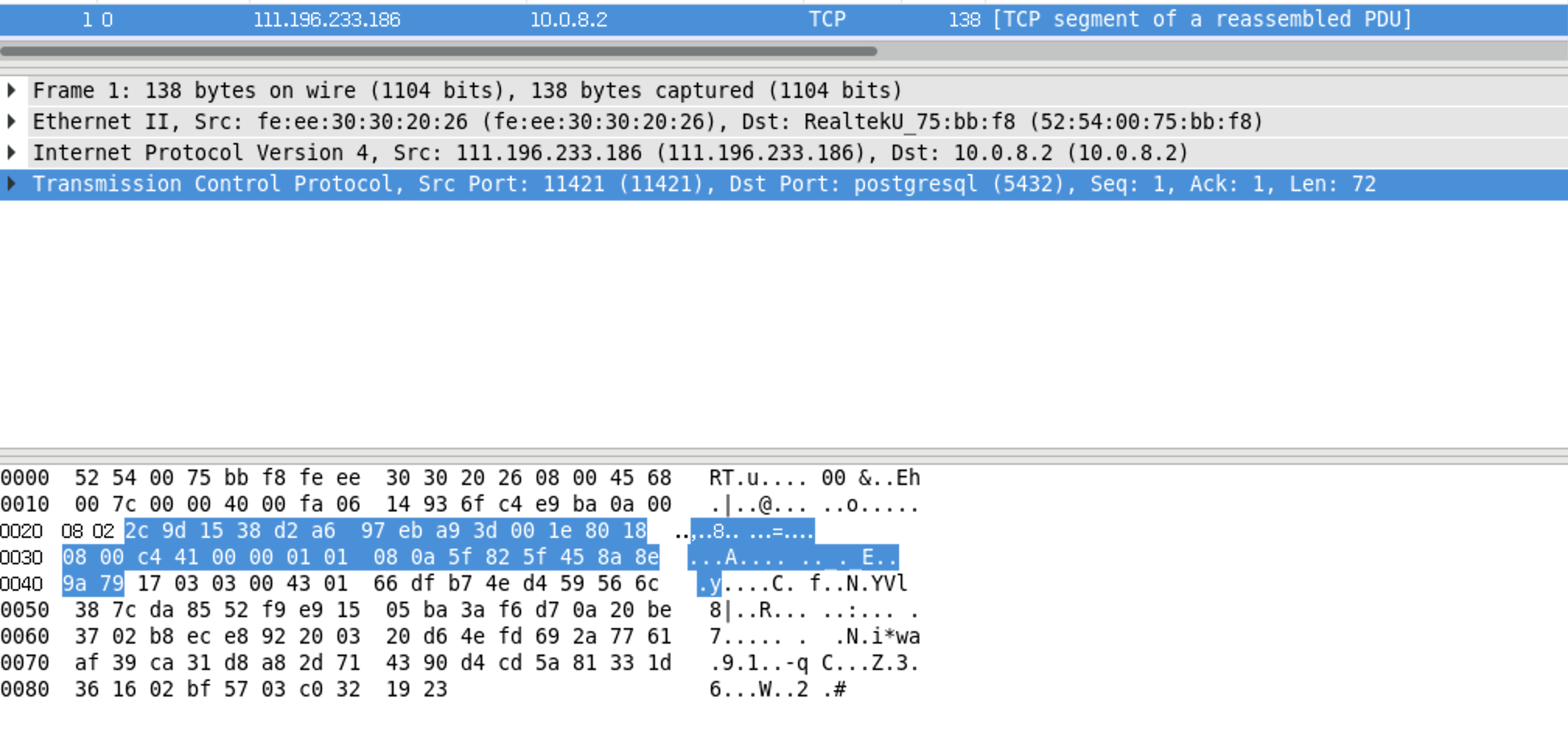
Open the packet capture file in Wireshark:
Search for the inserted data pattern '123456789' in the captured packets (the plaintext should not be found).
sudo yum -y install wireshark
sudo yum -y install wireshark-gnome
wireshark /tmp/http.tcpdumpssl = no

ssl = off


